
Beginner guide · Checked 27 October 2026 for patch 1.0.4
Your first cleanup run in Moon Sweepers
Start with a toothbrush, turn a load of dust into your first payment, and choose an upgrade that fixes your slowest step. The practical details below combine official patch notes with reported game values; check your current in-game prompts and prices before spending.
Short answer
What should I do first?
Take the starting toothbrush, sweep near the station, pack a load and deliver it to the depot. Watch your balance and the depot display; then compare a better brush with more capacity. A belt connected to the intake is a separate, automatic delivery route.

The first hour
From the station to your first payment
Keep your first route close to the station. The controls below are reported for the default keyboard layout; follow the on-screen prompt if your bindings differ.
- 01
Find the starting tool
Take the free Toothbrush from the supply wall and equip it. Check that the tool is visible and the dust gauge appears before heading outside.
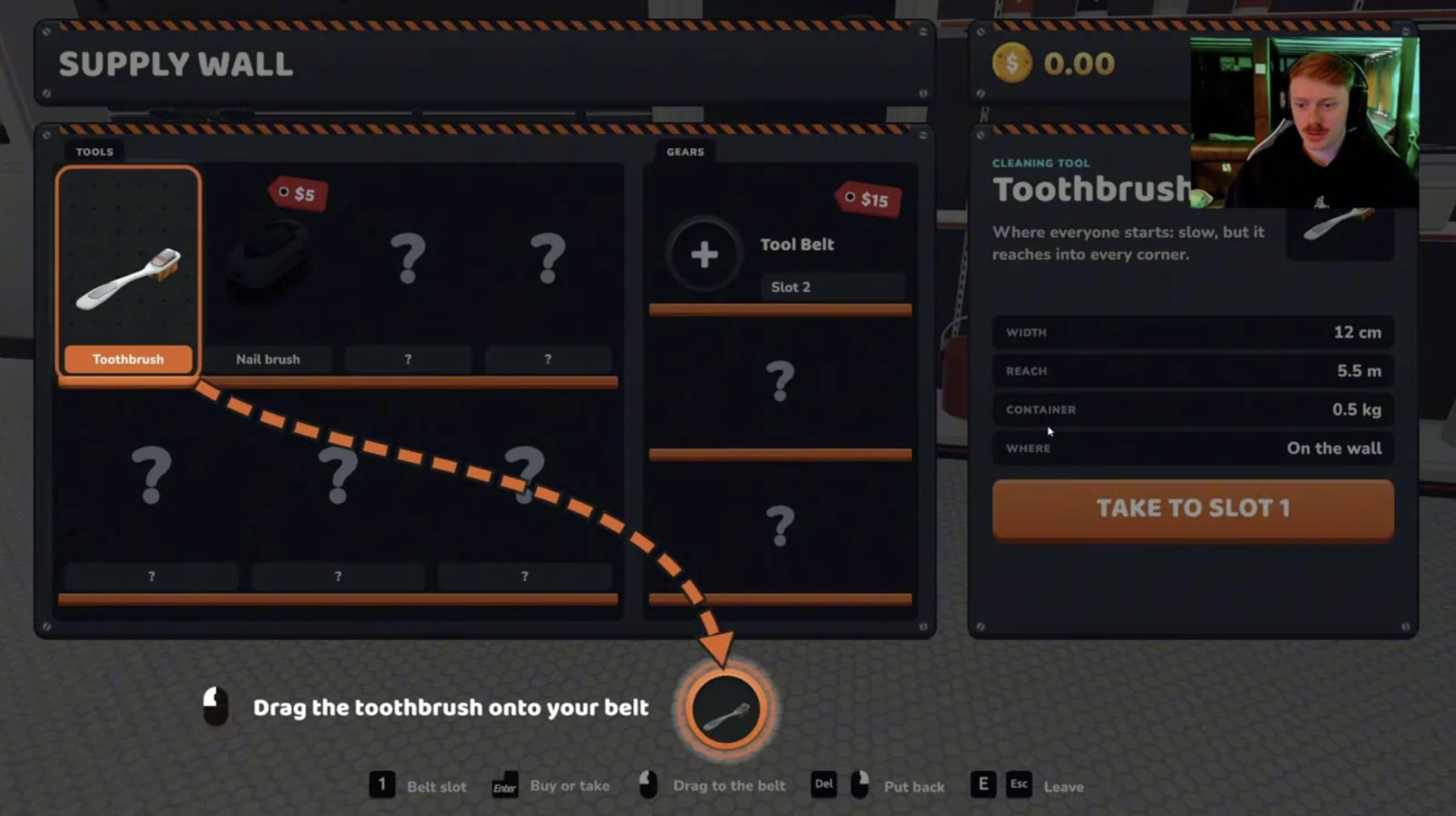
Starting toothbrush and tool-belt prompt. Reference: Moon Sweepers Wiki. - 02
Clean a nearby patch
Sweep dusty ground outside the station. A clean strip and a rising dust gauge show that you are collecting. Work across one area instead of walking far away.
- 03
Pack the dust
When the container fills, use the pack control. Guides report Q on the default keyboard layout. Look for a capsule and room in the gauge before continuing; check your key bindings if Q does not work.
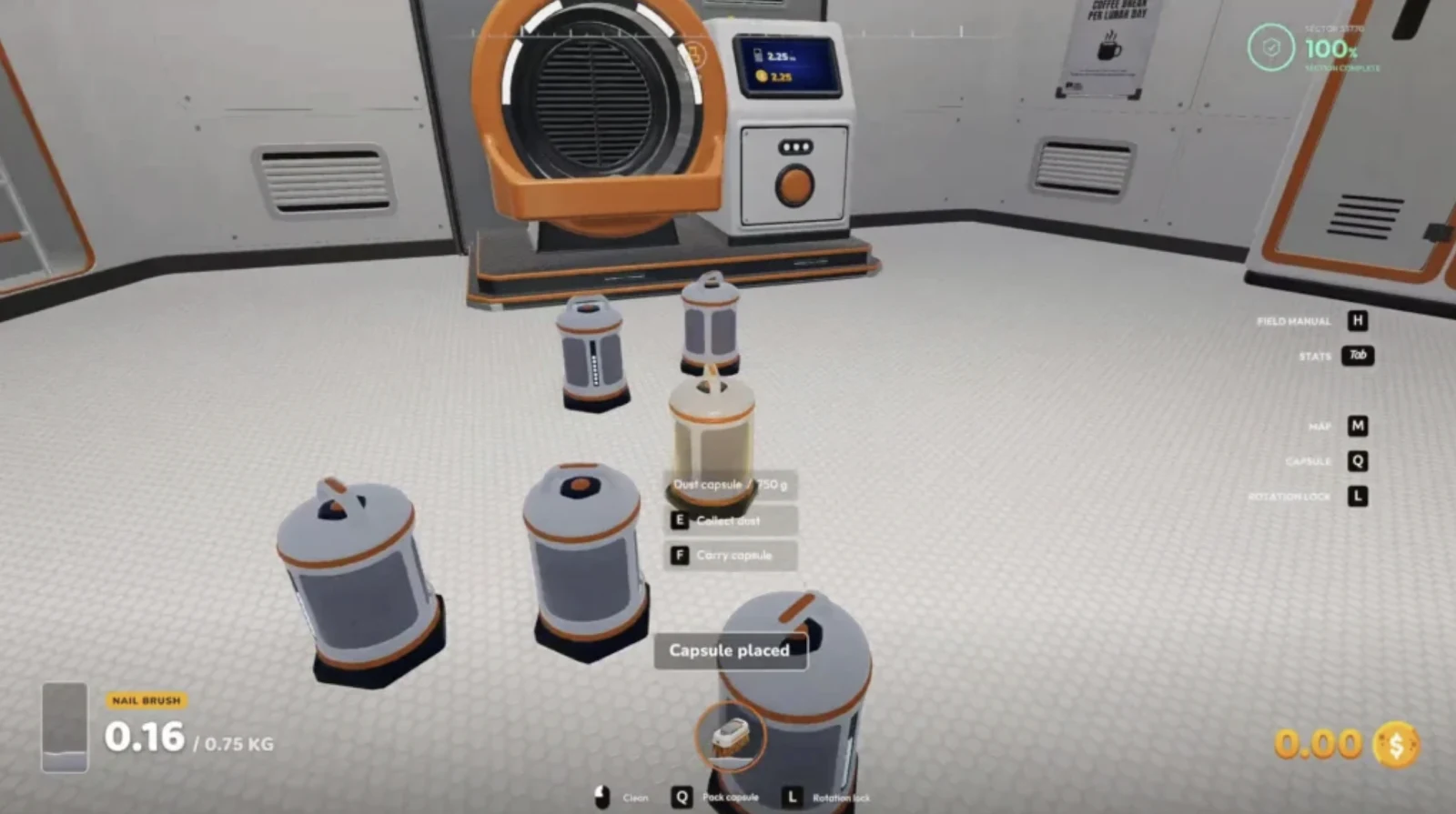
Dust capsules beside a station intake. Reference: Tpose Gaming. - 04
Deliver and check the result
Carry the capsule to the station's depot intake and follow its interaction prompt. Watch the intake display and your balance, and follow the depot's launch prompt when a shipment is ready. If the balance does not change, check that the capsule was accepted and whether a further shipment step is needed.
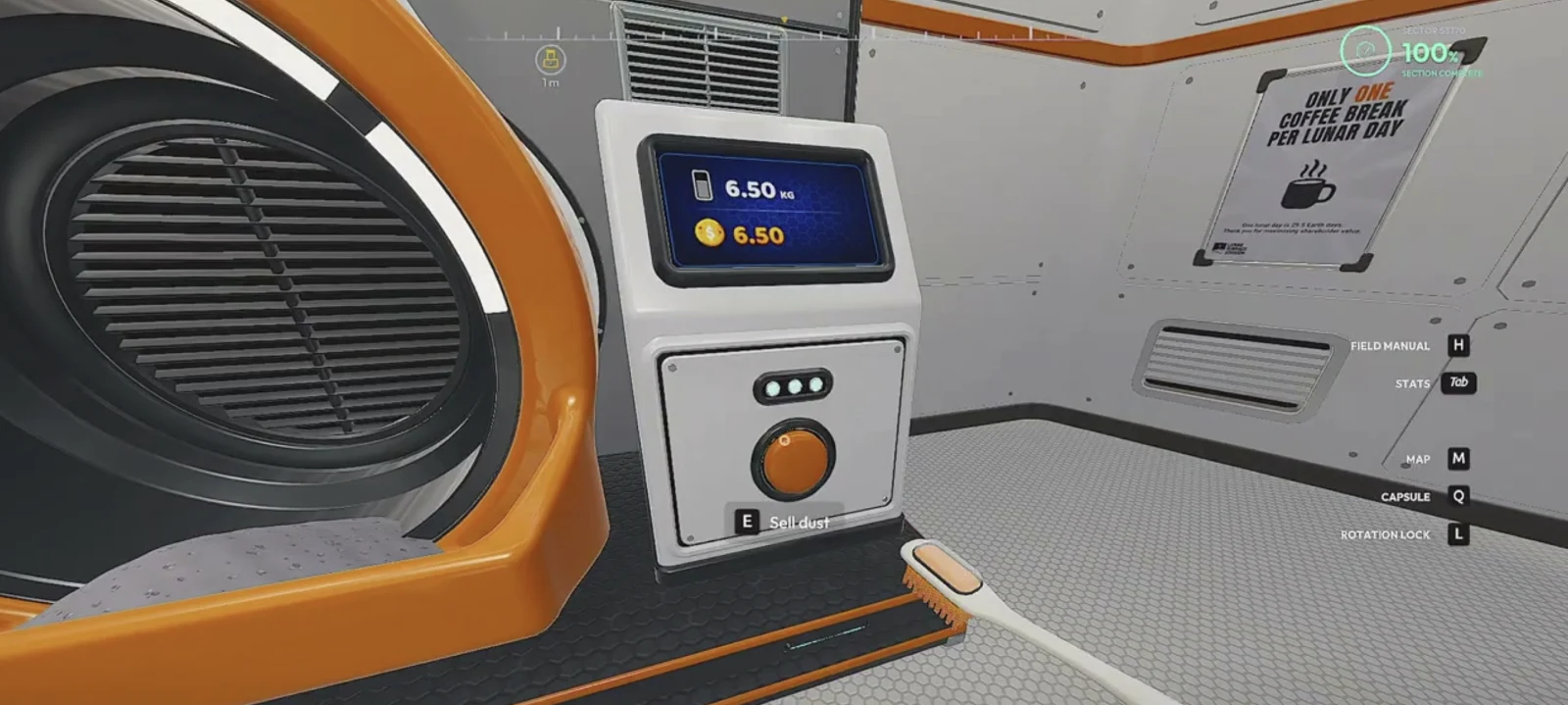
The station display and Sell dust prompt. Reference: 9Puz progression guide. - 05
Reinvest your earnings
Return to the supply wall or upgrade terminal. Compare the displayed prices with your balance and buy for the problem you noticed: slow sweeping, frequent packing, or a long return trip.
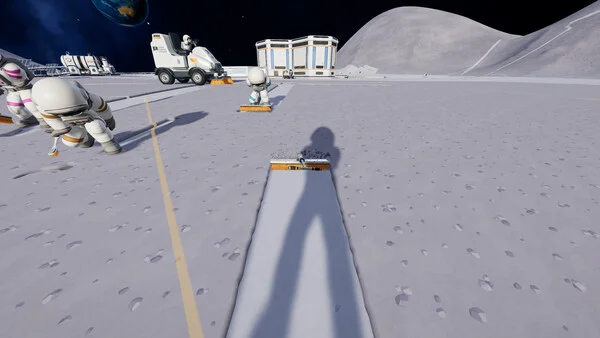
Stuck? If nothing is collected, equip the brush and aim at dusty ground. If cleaning stops, inspect the gauge and pack a load. If a capsule is still at your feet, carry it to the intake; dust in your tool or on the ground is not yet a completed delivery.
Keep the starting route short enough to see both ends. After your first accepted delivery, note your balance and repeat the same route once: compare time spent sweeping, packing and walking. This gives you a useful baseline before deciding whether another brush, more capacity or a transport route will help most.
Check each step before moving on
Finish a small area before moving farther
Keep the first few runs near the same depot. When a patch looks nearly clean, check its edges and the in-game progress indicator instead of assuming that the last visible strip is gone. A sector's local progress and the Moon-wide percentage are different measures. If a completion reward appears, record the amount and area; reference guides report early bonuses, but the amount may depend on the situation.
First purchase decision: compare your balance with the shop rather than buying each intermediate brush automatically. If a more expensive tool is nearly affordable, you can save for it; if the starting tool is making the session frustrating, a smaller upgrade may be worthwhile. There is no independently tested single best purchase order here.
Tools and upgrades
Choose the purchase that removes your bottleneck
Quick answer: choose Moon Sweepers upgrades for the delay you can measure on a paid run. A brush purchase, an Upgrade Matrix bonus and a Garage vehicle upgrade are different decisions; do not assume a handheld bonus also improves your rover.
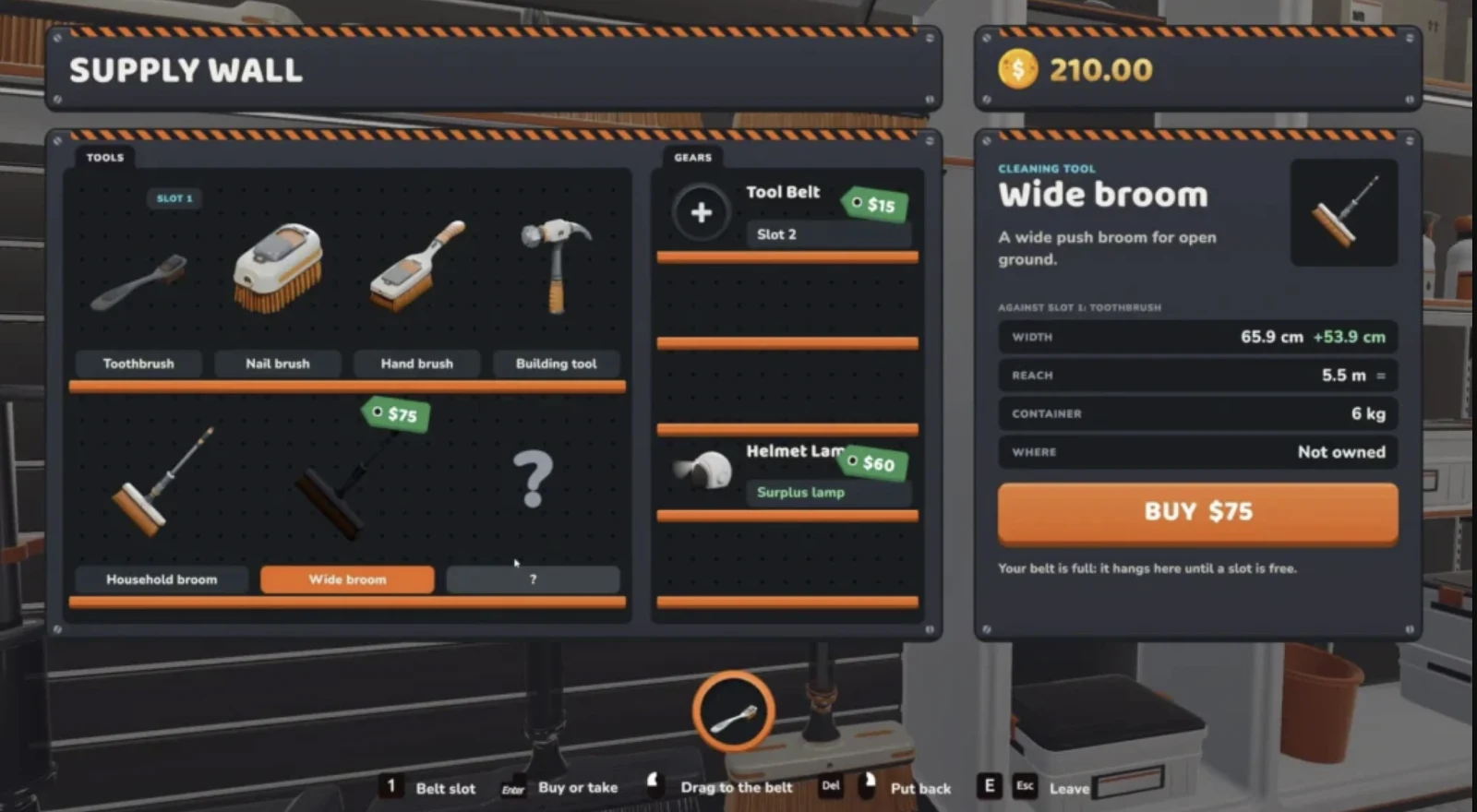
Launch-week guides report the following base tool prices and capacities. These are not an official price table or our own current-build measurements: verify the shop display in your save before buying.
Width, capacity or travel?
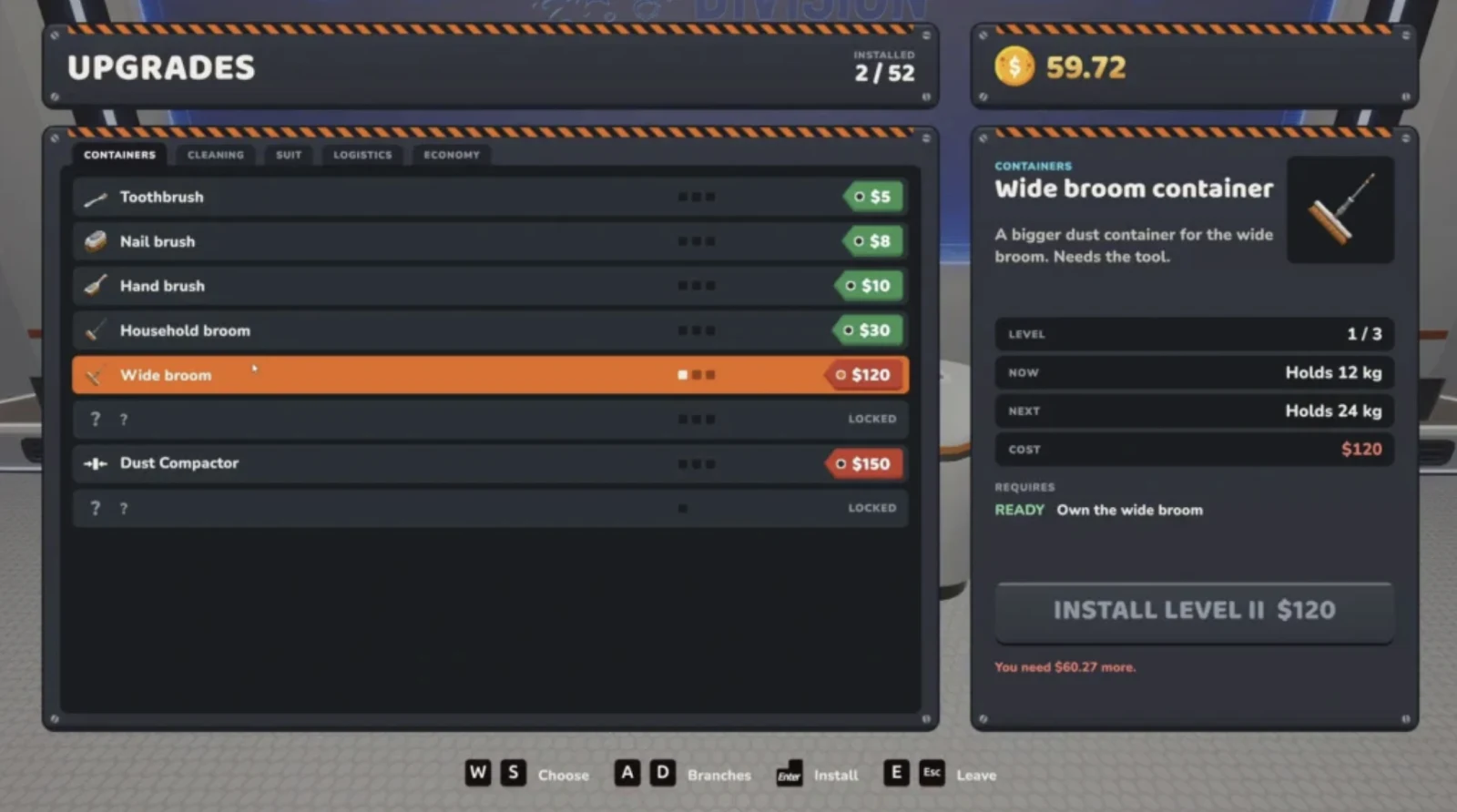
Auto Packer is reported to create a capsule when a tool fills; it does not deliver or sell that capsule. Compare the in-game prerequisite and price before buying. For a longer return trip, compare the Packager and depot route. In co-op, the developer says the host's upgrade matrix applies to the entire crew from patch 1.0.3; see the shared-upgrade and session checklist.
Compare upgrade effects before spending
Names and effects above are guide reports, not independently tested here. Prices, prerequisites and scope can change; use the in-game description and compare balances before and after a purchase.
Test the upgrade against your own route
- Complete one nearby sweep and delivery. Note how long cleaning takes, how often the gauge fills, and how far you walk to unload.
- Choose one improvement: a wider tool for slow passes, capacity for repeated packing, or a shorter delivery route for long walks. Check the displayed price and prerequisite.
- Repeat a similar run and compare the same measures. A wider pass can fill the container sooner; a larger container can reduce interruptions but still needs unloading.
- Before upgrading an older brush, inspect the new tool's own capacity and the upgrade row. Guides report that tool-specific container upgrades and shared matrix bonuses are separate; verify which one applies before spending.
Dust, Packager and payouts
Follow one load all the way to payment
Manual route: sweep → pack → carry the capsule → depot intake → follow the shipment prompt and check your balance. Belt route: sweep → load a Packager → conveyor → depot intake → check the balance. The developer's 1.0.3 notes say dust and stone arriving by belt are paid as they arrive, so a separate manual launch should not be assumed for that route.
Packager setup and first delivery
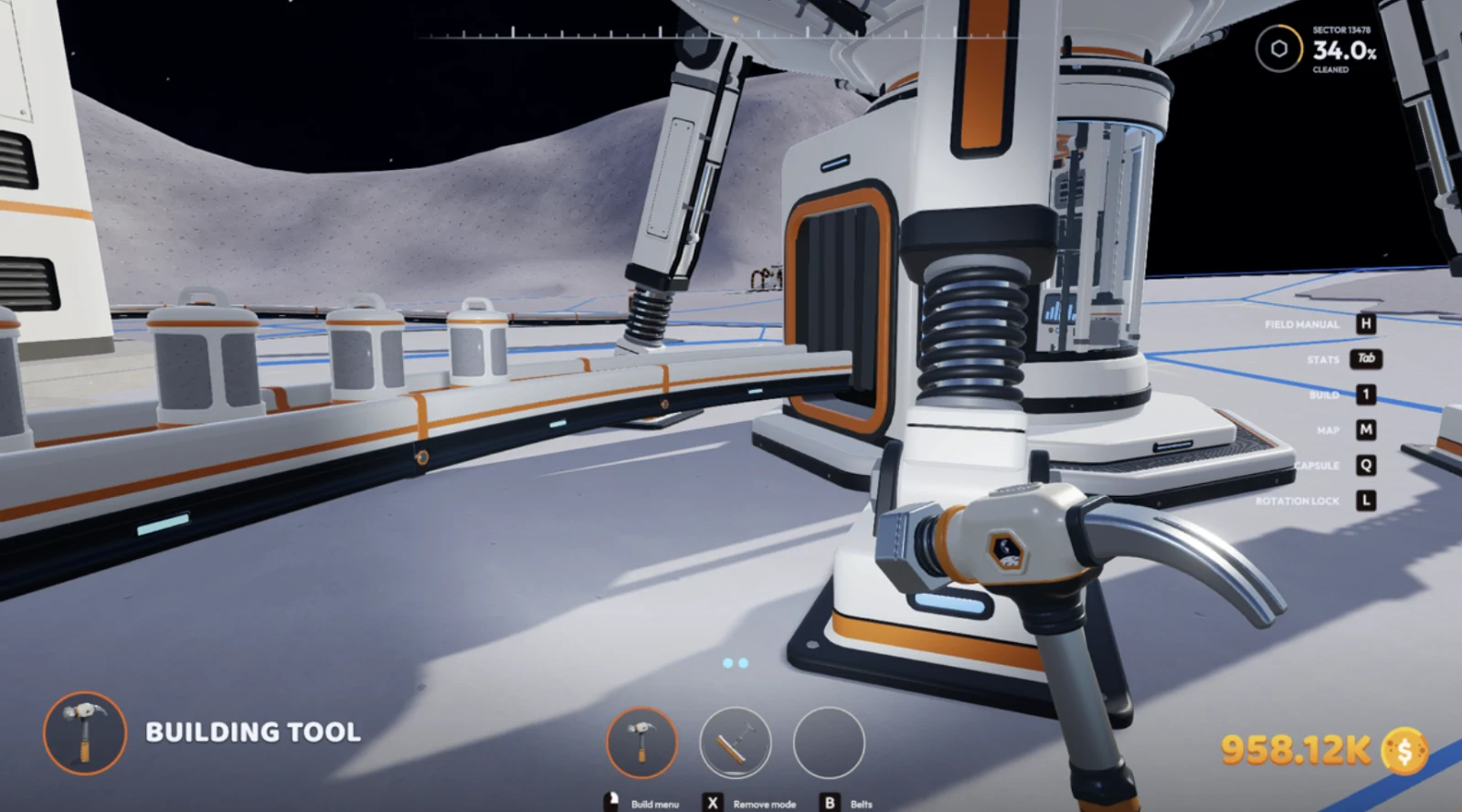
A Packager can shorten the trip between your work area and the depot. Connect its output to a receiving route and follow a small load to the intake. Read the full Packager guide →
Packager or Auto Packer?
Guides describe the Packager as a structure with an output route, while Auto Packer is a handheld upgrade. Compare the options and delivery checks →
Processing is a separate step
Guides describe a Pressure Chamber converting dust into Moon Sand and a Stone Press requiring dust and sand to produce Moonstone. Before building a processing line, establish a working direct route and test a small batch through the machine and into the intake. Check input and output connections, required materials and power in the machine interface. Published payout multipliers and processing economics differ between guides, so compare actual input, output and payment in your own save before investing heavily.
Why did the money not arrive?
- Check whether dust is still in your tool, on the ground or waiting inside the Packager; use the relevant interaction prompt.
- Follow one capsule from the output and check the belt direction, joins and destination. A belt that ends near the intake may not be connected.
- If a processor stops, check its input, output, required materials and power. Test the direct belt route to isolate the machine.
- Check the version and the exact message. The developer says patch 1.0.4 fixed a “Could not pack a capsule” pause even when power and materials were available.
Estimate your own delivery rate
Enter the payment and elapsed minutes for a complete run. The result is a simple projection of that run, not a promised profit rate; include return trips and waiting time. For a crew, enter the crew's total and do not multiply it by the number of players.
Formula: payment ÷ minutes × 60. This excludes purchase costs and assumes the same rate can be maintained.
Automation
Build a line you can follow from end to end
Start with one route and prove that a capsule reaches the depot. Only then add branches or processing. The following layouts are planning diagrams; check each machine's ports and prompts in your game.
Two-input processing sketch
Conceptual flow, not a measured construction layout. Check the current machine labels, port positions and power requirements in your game.
Your first Robot Vacuum line
- Choose uncleared ground inside the robot's shown work area and leave space around its dock.
- Connect the dock output to a conveyor leading to the depot intake. Check direction and joins before spending on a long route.
- Let the robot collect and return; watch for dust disappearing, a capsule leaving the dock, and a payment at the intake.
- If the area is clean, choose fresh ground for your next setup. Compare extra coverage against the cost of the new transport route.
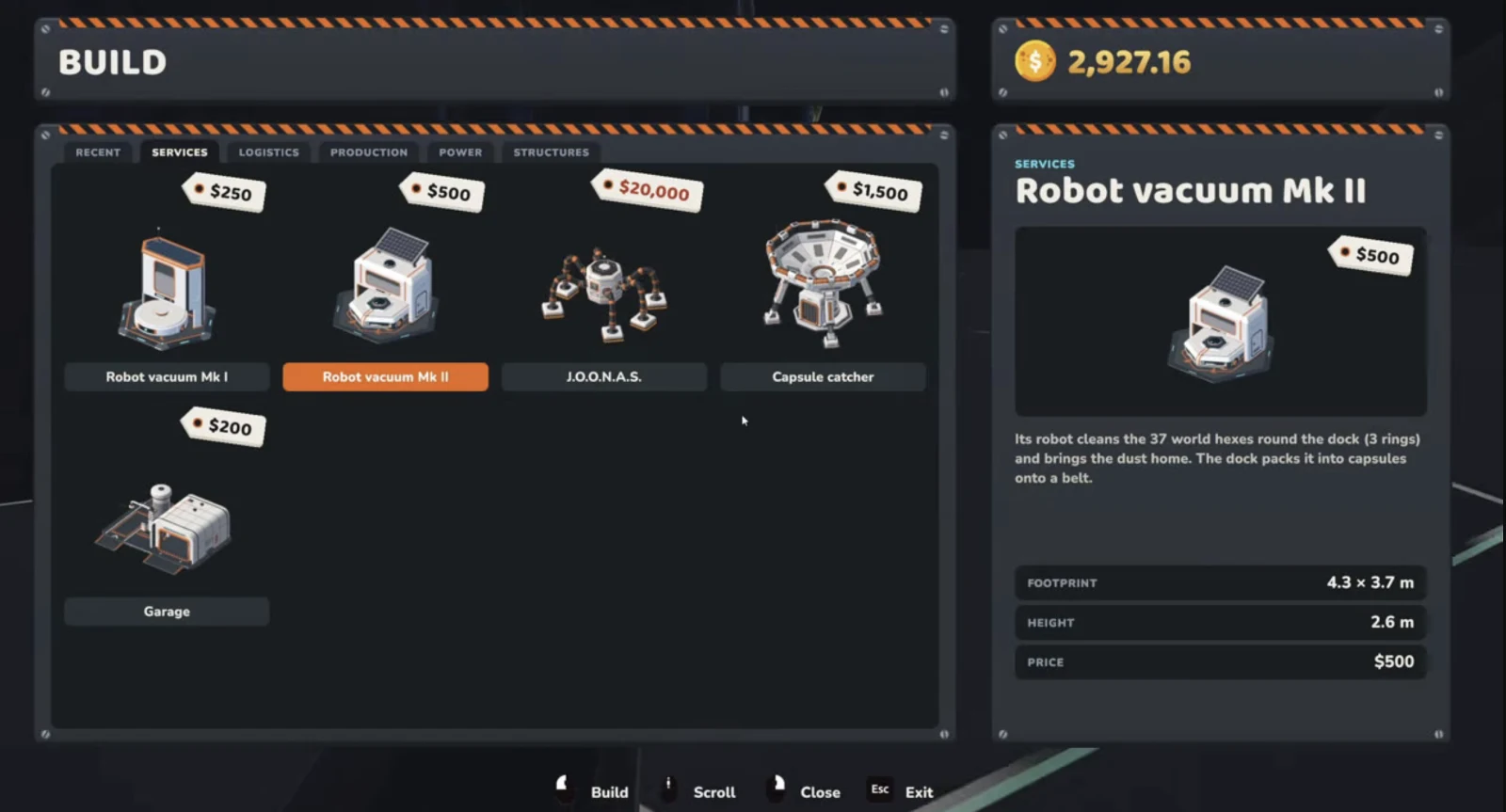
Reference guides report a $50 Building Tool, $250 Robot Vacuum Mk I and $500 Mk II; these figures and coverage are not independently play-tested here. Check the current build menu, placement preview and prerequisites.
Splitters, mergers and processing
A splitter divides a flow; a merger joins flows. Put them where there is room to inspect all ports. A crossing belt does not necessarily form a connection. When feeding a Stone Press, reference guides describe a direct dust branch and a second branch processed into sand; check the machine's actual input labels before connecting them. Watch a small batch pass every junction and leave the final machine.
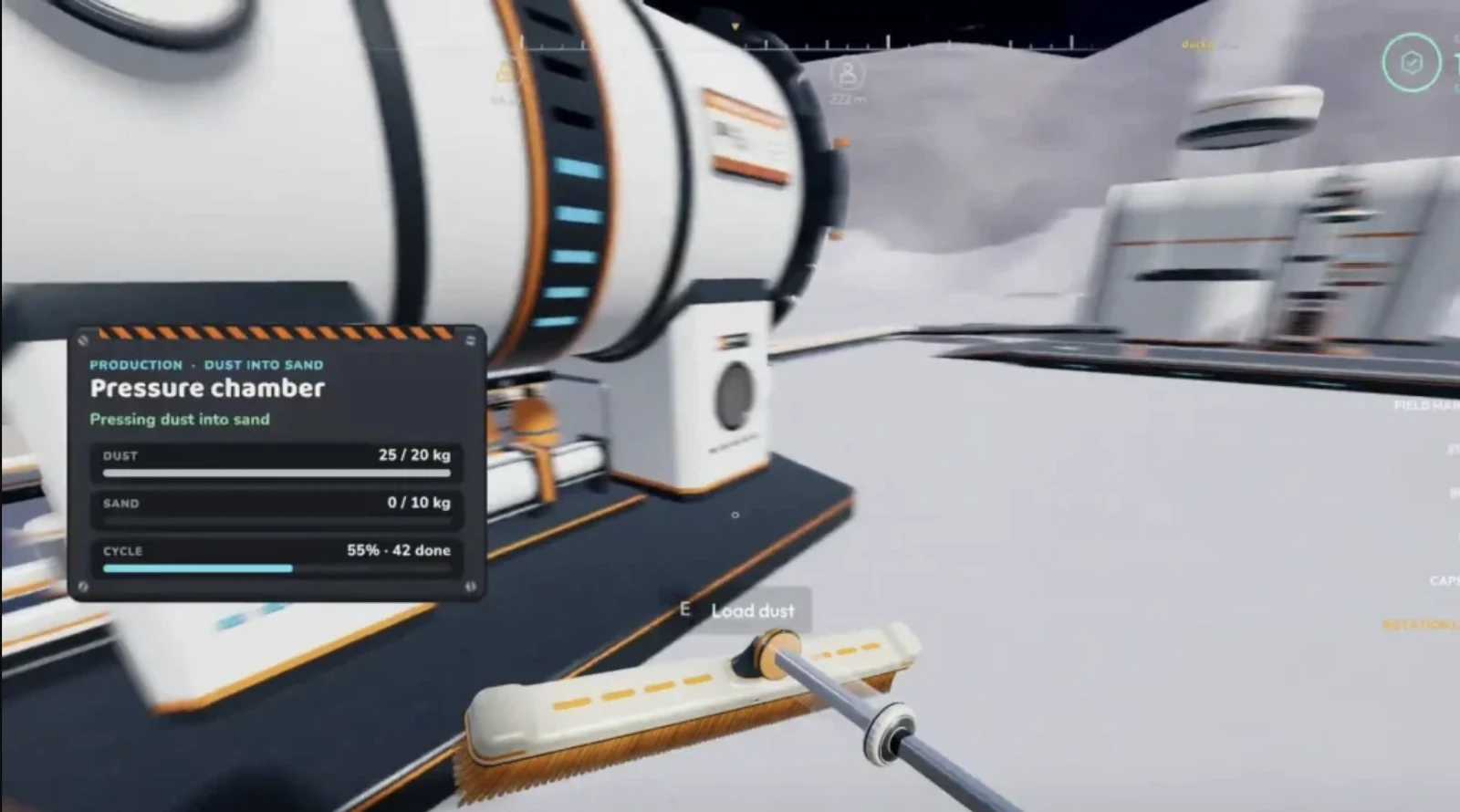
Patch 1.0.3 fixed crewmate-built splitters and mergers and added port-to-port snapping; 1.0.4 lets crew members attach them to one another's belts and says mergers alternate inputs.
Check the hand-off: start with a single feed and a single exit. Place one capsule on the line, follow it through each junction and record where it stops. If it reaches the processor but the output stays empty, inspect the ingredients and power; if output leaves but does not pay, trace the route to the intake. A splitter placed near a machine may be hard to inspect, so allow space around connections.
Power and night operation
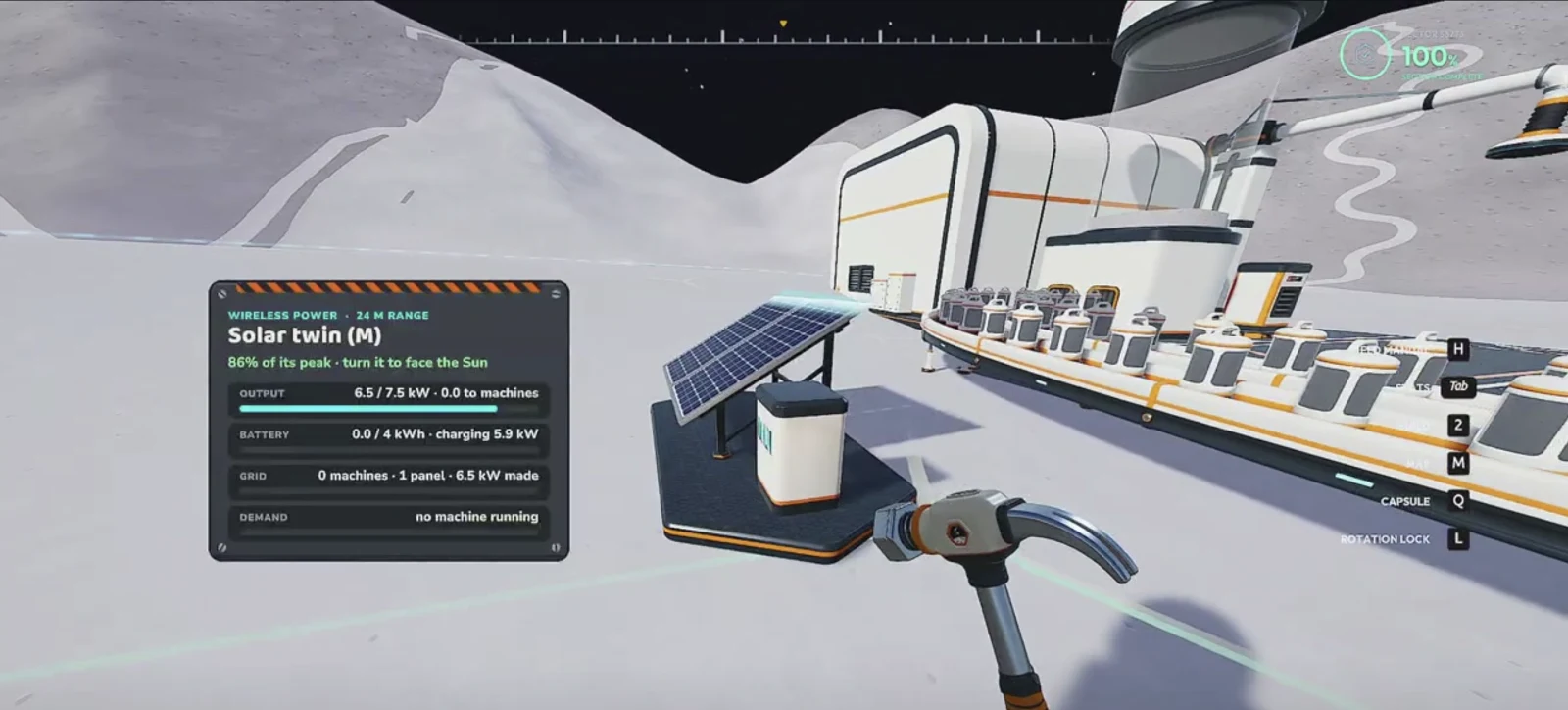
Inspect each processor's power requirement and the connected grid's generation and stored charge. If it runs in daylight but stops at night, check generation and storage before rearranging belts. Published power figures vary in reliability, so use the values shown on your own machines rather than assuming a fixed budget.
Moon Sweepers Joonas (J.O.O.N.A.S.) and the Capsule Catcher
Quick answer: prepare the catcher and delivery line before relying on Joonas for unattended collection. In 1.0.4, J.O.O.N.A.S. cleans one sector at a time, launches capsules to the nearest catcher while moving and continues when players are away. The catcher holds 100 kg according to the patch. Guides report prices of $20,000 for the robot and $1,500 for the catcher; check the shop and budget for the downstream route too.
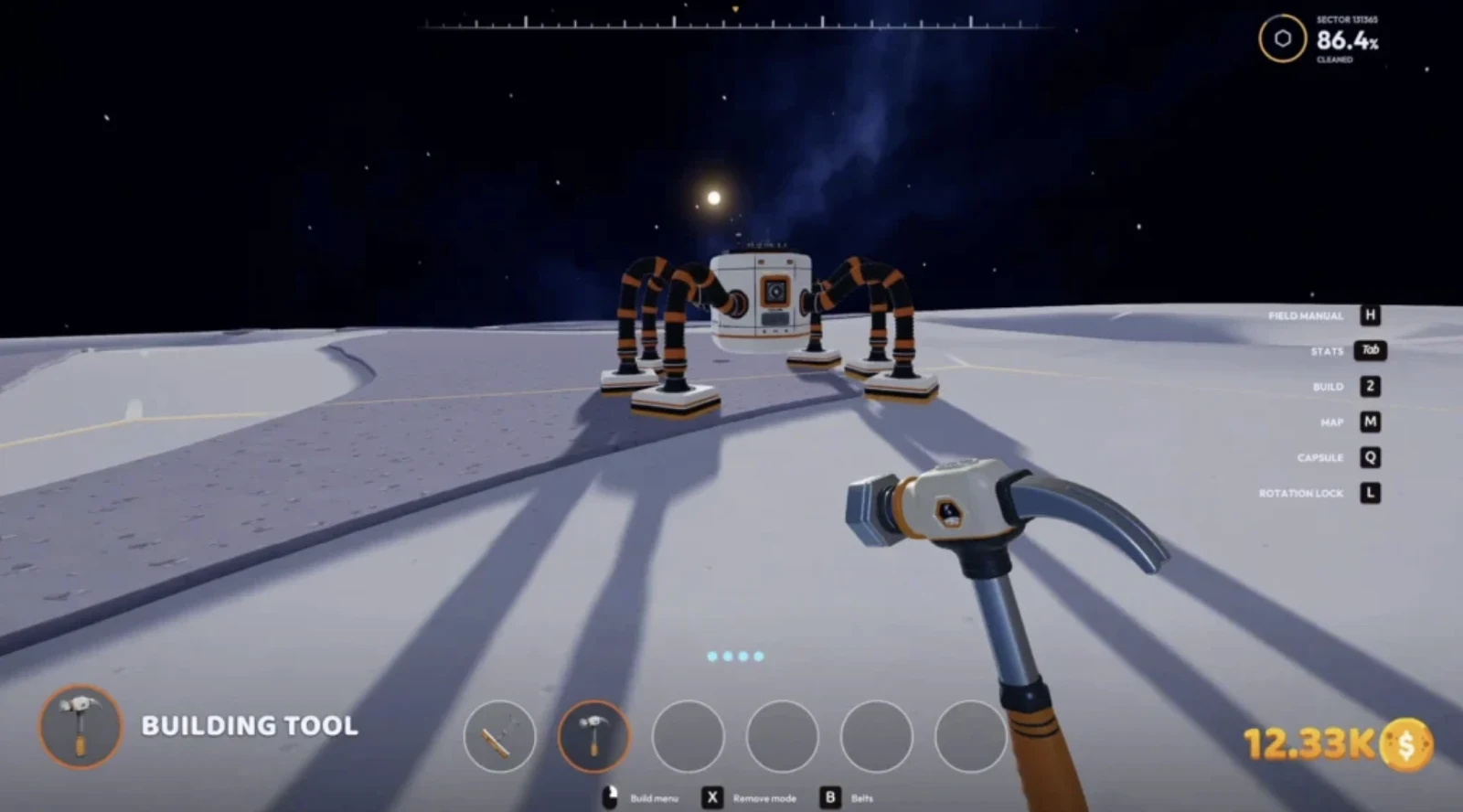
Before deployment: confirm your installed version, find reachable dirty ground, and leave room to inspect the catcher output. With several catchers, check which one is nearest instead of assuming the robot will use your newest line.
- Place the catcher and connect its output to a route with a valid destination.
- Check the robot's information panel and full-bin indicator. Let it clean, then watch the catcher receive a capsule.
- Follow the catcher's output to the intake. A full catcher or a stopped downstream line is a transport problem even if the robot still cleans.
Success check: look for cleaning progress, a capsule received by the catcher, and a delivery reaching the depot. The 1.0.4 map can show robot activity, so use it to compare progress after leaving the area. These are checks to run in your save, not results from our own play test.
When a line stalls: trace the first stopped capsule from collector to belt, junction, processor and intake; check the required inputs and power at that stage. Patch 1.0.4 fixed a “Could not pack a capsule” pause despite available power and materials, but a new occurrence still needs diagnosis.
Vehicles and garages
Choose a vehicle for the route, then plan unloading
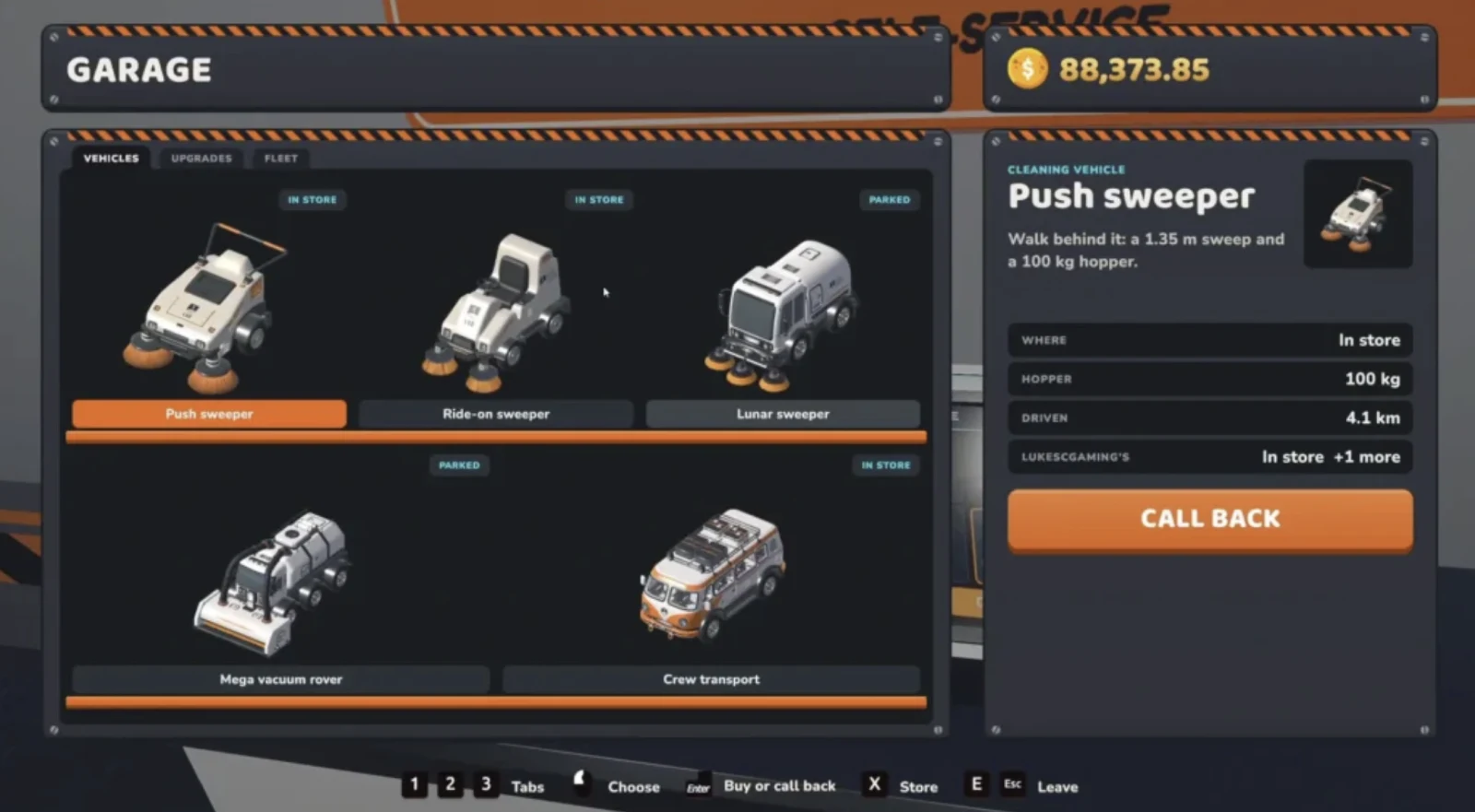
Cleaning width helps cover ground; hopper size changes how often you return. If your unloading line cannot keep up, a larger vehicle can simply move the bottleneck to the garage.
These are launch-week guide figures, not an official price list. Guides also report a $200 Garage and a Building Tool requirement; verify the menu and total before buying.
Include the Garage, Building Tool if needed, vehicle and any unloading connections in your budget. A transport-only vehicle solves a crew travel problem, not a cleaning problem. For a sweeper, compare the width and hopper in the Garage menu and test whether you can empty it before committing to a longer route.
Test the unloading route
- Build the garage and select a vehicle using its menu. Follow the displayed controls to deploy it and clean a short patch.
- Return with a small load and use the vehicle unloading or collector interaction. Confirm the hopper decreases and the receiving silo accepts material.
- Connect the silo output to a belt reaching a depot intake or suitable processor. Watch a capsule leave and confirm the final payment.
- Only extend the driving route once the receiving end works. If the hopper empties but your balance stays flat, trace material after the silo.
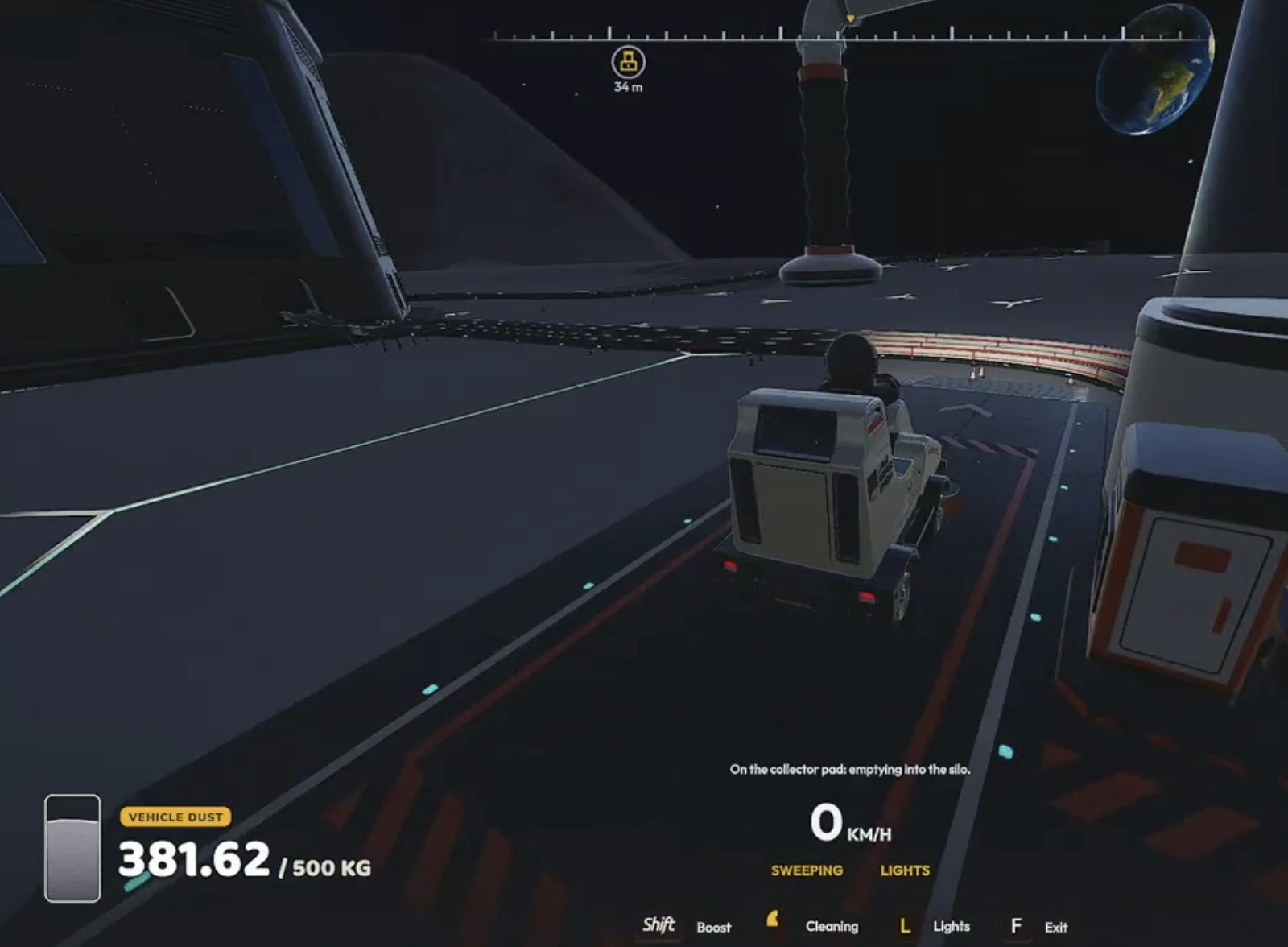
Since 1.0.3, any garage can recall, store and upgrade your vehicles. If a garage is demolished, the developer says stored vehicles move to another garage or wait for the next one built. Ownership details in co-op should be checked in your save rather than inferred from the shared upgrade matrix. Use the map and waypoint tips to plan a route before driving farther from the unloading point.
Moon map and exploration
Turn the map into a practical work plan
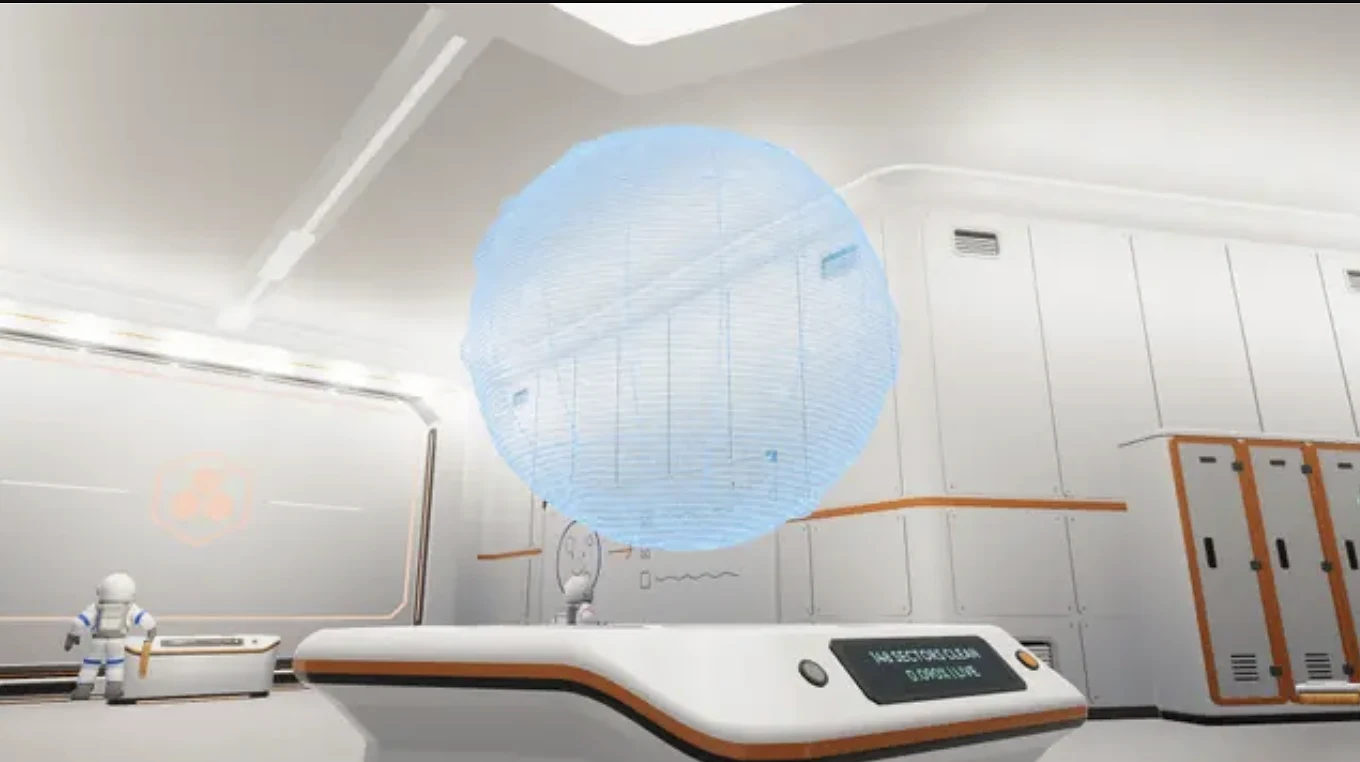
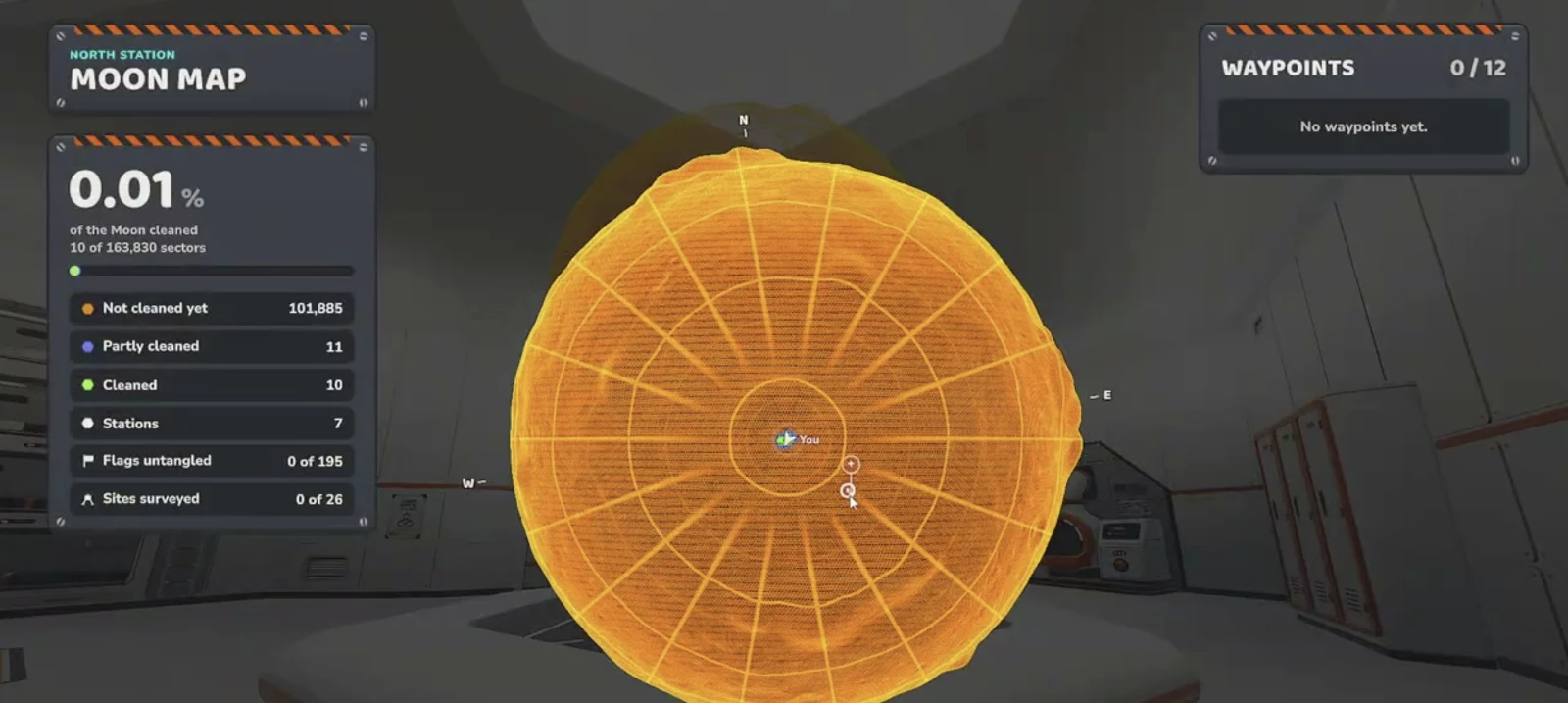
Open the station map and compare nearby unfinished ground with the location of your depot and machines. Reference guides describe orange as untouched, blue as partially cleaned and green as complete; confirm the map legend in your build. A local sector percentage and the Moon-wide percentage measure different scales.
- Choose a nearby partially cleaned area and inspect edges or narrow strips that may have been missed.
- Check the local progress indicator until the area registers complete; then choose a connected area rather than scattering work across the map.
- Before a longer trip, mark the destination and identify a known station or return route. Compare distance to the time needed to unload.
- Check the overall percentage and section or region counters after a session. These are different milestones; do not assume a full region is the same as one cleaned section.
Waypoints, stations and landmarks
Patch 1.0.4 added map right-click actions for waypoints, focus and teleport, robot activity markers and a panel for travelling between discovered stations. Available actions depend on what is discovered and the options shown on screen.
Guides describe untangling flags and surveying historical sites for separate rewards, often reported as $100 and $250 respectively. Treat these as observed examples, not guaranteed payouts. Approach the landmark, complete its displayed interaction, and check the reward and map counter before leaving.
Personal sweep log
Keep a short note of the area, waypoint and unloading route you are using. This is a personal browser note, not the in-game map or a shared crew map.
Notes are saved only on this device.
Estimate progress from your own pace
Record the Moon-wide percentage, then measure how many percentage points it changes per hour. This is a linear estimate; new tools, terrain, breaks and automation can change the pace.
Formula: (target percentage − current percentage) ÷ percentage points per hour. It does not assume a fixed number of sectors.
Achievements
Track your achievements
Browse the achievement groups and keep your personal checklist on this device. The checklist is not linked to Steam.
Playing together
Host, join and coordinate a crew
Steam lists solo play and online co-op for up to 16 players. Menu wording and available invitation options can differ by version; the following is a practical sequence, not a tested description of every lobby screen.
Host and invite
- Have everyone update the game and sign in to Steam. Compare versions before opening a session.
- The host starts or loads the intended world with the game's multiplayer or hosting option, then checks its available visibility or invitation settings.
- Invite friends using an available in-game invitation or Steam friend/overlay option. Guests accept or use an available join action.
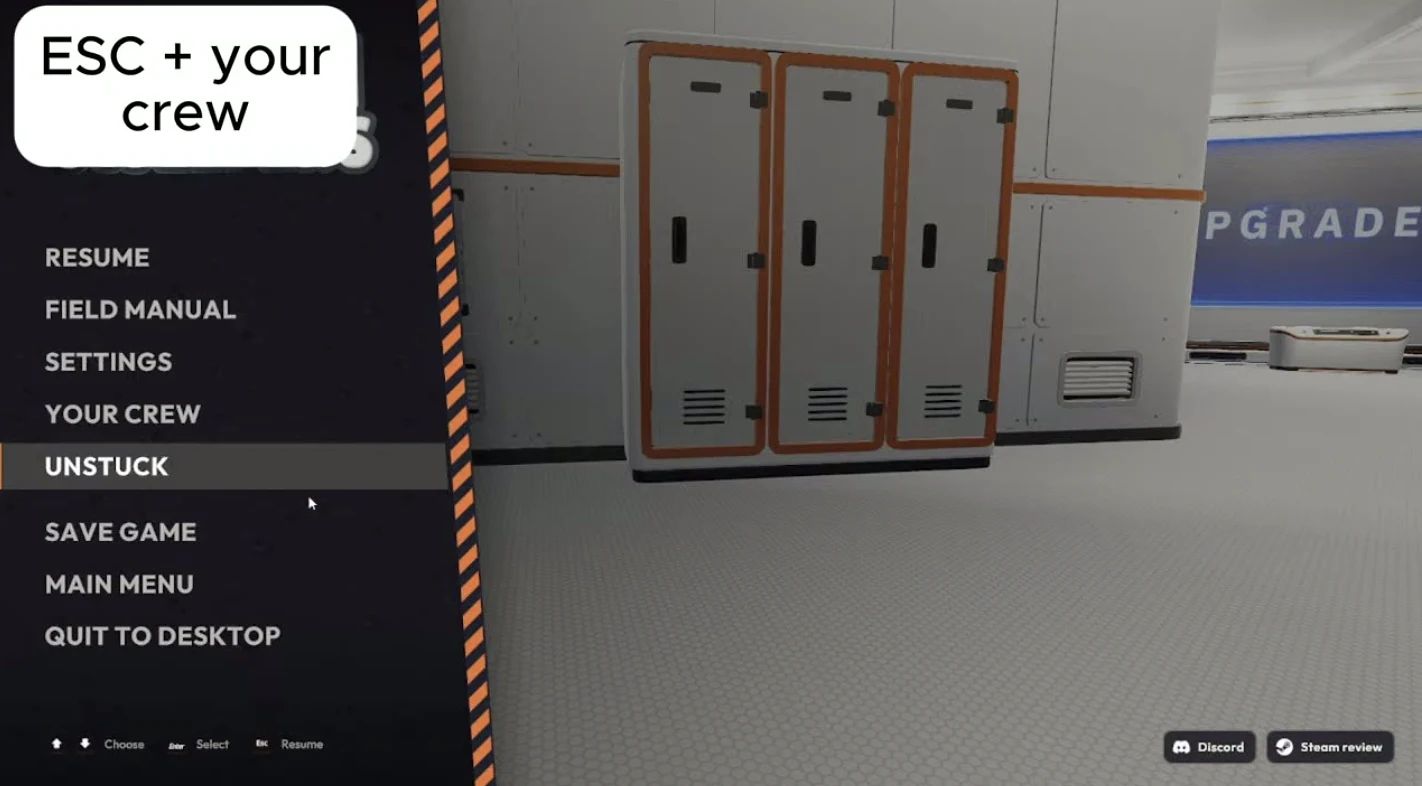
- Once loaded, check the host's Esc → Your Crew list. Start with a small shared job and make sure players can see the same cleaned ground.
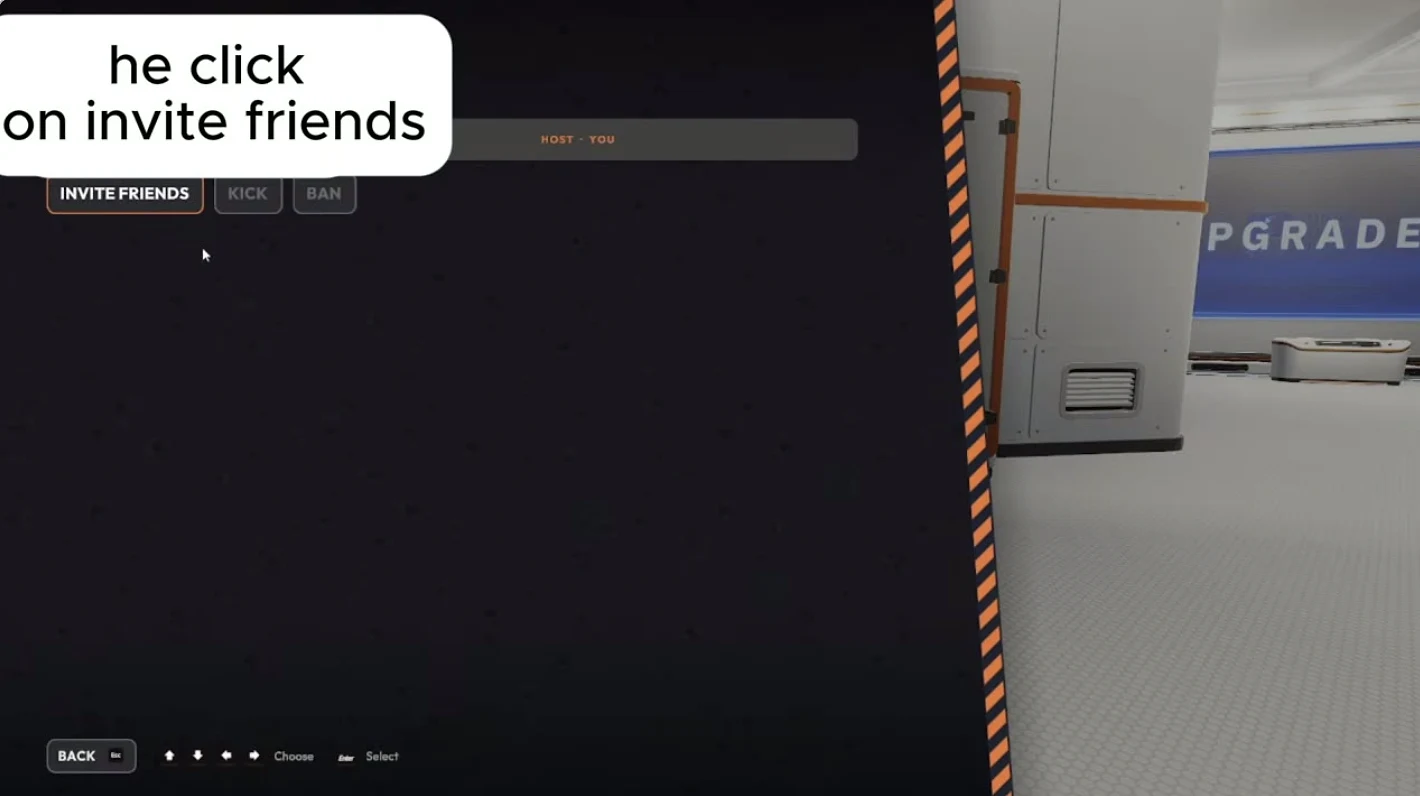
Shared upgrades and practical roles
From 1.0.3 the crew uses the host's upgrade matrix; a purchase applies to everyone, and older saves retain the highest level previously bought. Coordinate purchases. Divide work between sweepers, a driver and someone following the belt to the intake; small crews can combine roles.
If joining or synchronisation fails
- Compare installed game versions, update and restart the game if needed. The 1.0.3 announcement explicitly required the same version for the crew.
- Confirm the host is in an active multiplayer session, check its visibility and send a fresh invitation. The host can inspect the Your Crew ban list; 1.0.3 added kick, ban and unban controls.
- If cleaned ground reappears or players disagree about it, confirm the version: 1.0.4 reworked ground synchronisation, including manual and robot trails. If it persists, record the location and steps for a bug report.
- If a guest cannot attach a splitter to another player's belt, check for 1.0.4 or later, which added that ability. Test one junction together before rebuilding a larger network.
For a quick synchronization check, have one player clean a small marked patch while another watches the same area and the map. If they disagree, note which player is host, the game versions and whether the mismatch affects manual cleaning or robot trails. Shared upgrade levels do not by themselves establish whether every item, vehicle or wallet is shared.
Version history
What 1.0.3 and 1.0.4 change for players
1.0.3 · 24 October 2026
- Co-op purchases: the host's upgrade matrix is shared, so a crew no longer needs separate matrix purchases for each player.
- Garages: recall, store and upgrade owned vehicles at any garage; removing one no longer deletes its stored vehicles.
- Construction and sales: crew-built splitters and mergers work, they can snap port-to-port, and the intake pays the amount displayed as dust or stone arrives by belt.
- Saves and access: previously unopenable heavily cleaned worlds can load again; save protection and host kick/ban controls were added. All players needed 1.0.3 to play together.
1.0.4 · 25 October 2026
- Robots: J.O.O.N.A.S. works without a nearby player and sends capsules to the nearest catcher; catcher capacity increased to 100 kg.
- Map and equipment: right-click waypoint, focus and teleport actions, robot activity markers and a station teleport panel improve route planning. Night-vision goggles were added.
- Co-op and factory: ground sync was reworked, shared belt editing improved and a machine capsule-packing pause was fixed.
- Backups: each slot keeps up to five backups outside Steam Cloud, taken one minute into a session and then every 30 minutes; damaged saves may be repaired on load.
The developer warns that saves made in 1.0.4 cannot be opened in older versions. Check the developer announcements for later changes before following version-specific advice.
Troubleshooting
Find the first symptom, then check in order
A machine has stopped
- Check the machine's message, inputs and output. Is a required material missing or the output blocked?
- Check its power connection, current generation and stored charge, especially if the stop occurs at night.
- Check the game version and note that 1.0.4 fixed one capsule-packing pause. If the same message persists, record the setup and report it.
A capsule is stuck or no money arrives
- Watch one capsule from its source. Check that each belt points toward its destination and that ports and junctions connect.
- Check the first blocked splitter, merger or machine output. For a processing line, confirm all required inputs and power.
- Confirm the final belt reaches the depot intake and compare the displayed sale and balance. Test a direct route if necessary to isolate the processor.
A robot or vehicle seems unavailable
- For a local Robot Vacuum, inspect whether its work area still contains accessible dust and whether its dock output is blocked.
- For J.O.O.N.A.S., inspect its panel and full-bin indicator, then check the nearest catcher and its downstream route. Confirm patch 1.0.4 behaviour.
- For a vehicle, use a garage to check owned vehicles and recall options. Check that the receiving pad and silo can accept a load before a long run.
A friend cannot join or sees different ground
Compare versions, session visibility, invitation and the host's ban list in that order. For reappearing dust, check for the 1.0.4 ground-sync changes and record any continuing mismatch. The co-op steps above cover the full sequence.
A save fails to load
- Do not open a 1.0.4 save in an older build. Update to a compatible version and read any automatic repair message on load.
- Make a separate copy of the current save and backups before moving or replacing anything. On Windows, the developer gives the backup folder as
AppData\LocalLow\DragDropGames\MoonSweepers\Backupsunder the user profile. - The developer describes automatic repair from backups, but does not give a manual restore procedure in the patch notes. If repair fails, keep the copies and ask the developer for the correct slot-specific recovery steps; do not overwrite files based on a guessed procedure.
Startup crash, black screen or Steam Deck issue
- Start the game through Steam, check the installed version and record the exact error, operating system and graphics hardware.
- Patch 1.0.4 made DirectX 11 the default on Windows with AMD graphics to address crashes and fixed startup issues with older Proton versions on Steam Deck and Linux. Update before relying on older workaround lists.
- If the issue remains, check the latest developer announcements and report the error and reproduction steps. A player workaround is not a guaranteed fix; avoid editing game files or forcing a graphics mode without understanding its effects.
“Requires Steam” while already using Steam: record the exact message and how the game was launched. Launch-week reports do not establish a universal fix, so check current developer guidance before changing files or reinstalling.
Falling through the Moon: the 1.0.4 notes list a fix including after teleporting. If it happens on a current build, record the location and version; preserve your save and backups before trying recovery steps.
For a stopped delivery, revisit the Packager and depot checks or the automation layouts. For an unresolved issue, include the version, whether you are host or guest, exact error, steps to reproduce and relevant hardware when posting to Steam Discussions.
Community modifications · checked 27 October 2026
Moon Sweepers Mods: Availability and Compatibility
Quick answer: community mods and a save editor are listed on Nexus Mods. That is different from official mod support: we found no official Workshop or mod-tool announcement in the developer material checked. The listings below establish availability, not a recommendation to install them.
| Listing / author | Author's version and compatibility statement | Our verification |
|---|---|---|
| Moon Sweepers Mod Loader CiniTGS | Version 1; updated 25 October. Describes loading DLL mods and modifying Assembly-CSharp.dll. No exact supported Steam build is specified in the description reviewed. | Listing checked 27 October. Not tested; compatibility with your installed build is unresolved. |
| More Money – Save Editor nifffnafff | Version 2.0; updated 26 October. Author reports testing with the Steam version current on that date and older builds. Replaces the old game-file patcher with a save editor. | Listing checked 27 October. Author's claim only; no exact current build match or successful restore verified here. |
Both listings displayed the scan status “Some suspicious files” when checked. That label does not by itself prove malware or a false positive. Resolve the warning before running a file; we have not downloaded, audited or approved either package.
Check the version before following an installation guide
The More Money 2.0 author says the earlier DLL patcher no longer supports the current game build and describes a different save-editing approach. Do not combine old patcher instructions with a newer download. A mod's version number is not the game's version number; record both and read its dependencies, changelog and removal instructions.
Official patches can also replace the need for a mod. For example, the developer made the host's Upgrade Matrix crew-wide in 1.0.3. Check what the official patches already change before choosing a modification for an old problem.
Prepare a backup and a separate test
- Close the game and preserve a separate copy of your existing save data before changing it. On Windows, copy the MoonSweepers folder under
%USERPROFILE%\AppData\LocalLow\DragDropGamesto a dated location outside the game's folders. - Keep the developer's automatic backups too. They are useful recovery points, but a separate copy preserves your pre-mod state.
- Record the installed game build, mod version and any required loader. If compatibility is unclear, ask the author before proceeding.
- Once compatibility and file concerns are resolved, use a separate test world and one change at a time. Compare loading, saving and the intended behaviour with an unmodified session before considering a valued save.
- For co-op, agree on the change with the host and crew first. Matching game version labels alone do not demonstrate that different mod setups will synchronise.
Remove a mod or recover after an update
- Close the game and preserve the current files and your pre-mod backup. Identify whether the modification changed game files, save data or both.
- Follow the removal instructions for that exact release. The loader author describes an uninstall option; the More Money author describes a restore script. These are author-provided procedures that we have not tested.
- For changed game files, Steam provides Library → Moon Sweepers → Properties → Installed Files → Verify integrity of game files. See Steam's file verification instructions. Verification is not a save rollback and should not be treated as a complete cleanup of extra mod files.
- For changed saves, use the matching pre-change backup and the author's release-specific restore guidance. If Steam Cloud reports a conflict, compare the timestamps and preserve both copies before choosing; do not select local or cloud data blindly.
- After a game update, establish an unmodified baseline before reapplying anything. Confirm the mod's new compatibility statement and repeat the separate-world check.
If a problem remains, report the game build, mod release, exact error and whether it also happens without modifications. For ordinary progression, the upgrade choices, Packager route and Joonas delivery checks work as a starting point without a mod.
Quick answers
Beginner FAQ
Does Moon Sweepers have mods?
Community mod and save-editor listings exist on Nexus Mods. Their presence does not establish official support, current-build compatibility or safety. Our 27 October 2026 review checks author descriptions; we have not installed or tested these files.
Is a Packager the same as Auto Packer?
No. Guides describe the Packager as a structure that accepts collected dust and outputs capsules to a belt. Auto Packer is a tool upgrade that packs a full container; you still need a delivery route for the capsules.
Does Joonas keep working when players leave the area?
The developer's 1.0.4 notes say J.O.O.N.A.S. continues cleaning without nearby players and launches capsules toward the nearest Capsule Catcher. If it stalls, inspect the robot's bin, catcher and downstream delivery route.
Which Moon Sweepers upgrade should I buy first?
Complete a paid cleanup loop and identify the delay: sweeping, packing or transport. Compare a better brush for slow cleaning, capacity for frequent packing, or a shorter delivery route for long walks. Check the price, prerequisite and affected equipment before buying.
What do you do first in Moon Sweepers?
Collect dust with the starting toothbrush, pack it into a capsule and deliver it to the depot. Check your balance, then compare a better brush or more carrying capacity.
Can I play Moon Sweepers solo?
Yes. The official Steam listing supports single-player as well as online co-op with up to 16 players.
Do co-op upgrades apply to everyone?
Since patch 1.0.3, the crew uses the host's upgrade matrix and any purchase upgrades everyone. Players should use the same game version when joining a crew.
What should I automate first?
Trace one complete dust shipment by hand first. Then place conveyors and processing machines where they remove your longest repeated trip. This is a planning suggestion, not a tested optimal build.
Where can I see the achievements?
The official Steam achievements page lists the game's milestones. The achievement section groups the milestones by activity and progress.
Why is my conveyor not paying me?
Follow a capsule from its source to the depot intake. Check belt direction, joins, the final connection and any stopped processor, then compare the intake display with your balance.
Why has my robot stopped cleaning?
Check whether its assigned area still has accessible dust and whether its output is blocked. For J.O.O.N.A.S., also inspect its full-bin indicator, the nearest Capsule Catcher and the downstream route.
Can I recall a vehicle from another garage?
The developer's 1.0.3 notes say any garage can recall, store and upgrade your vehicles.
Why can't my friend join?
Compare game versions, check that the host has an active multiplayer session, send a new invitation and check the host's ban list.
Where are my save backups?
On Windows, the developer lists AppData\LocalLow\DragDropGames\MoonSweepers\Backups under your user profile. Make separate copies before moving or replacing save files.